

[What and why]
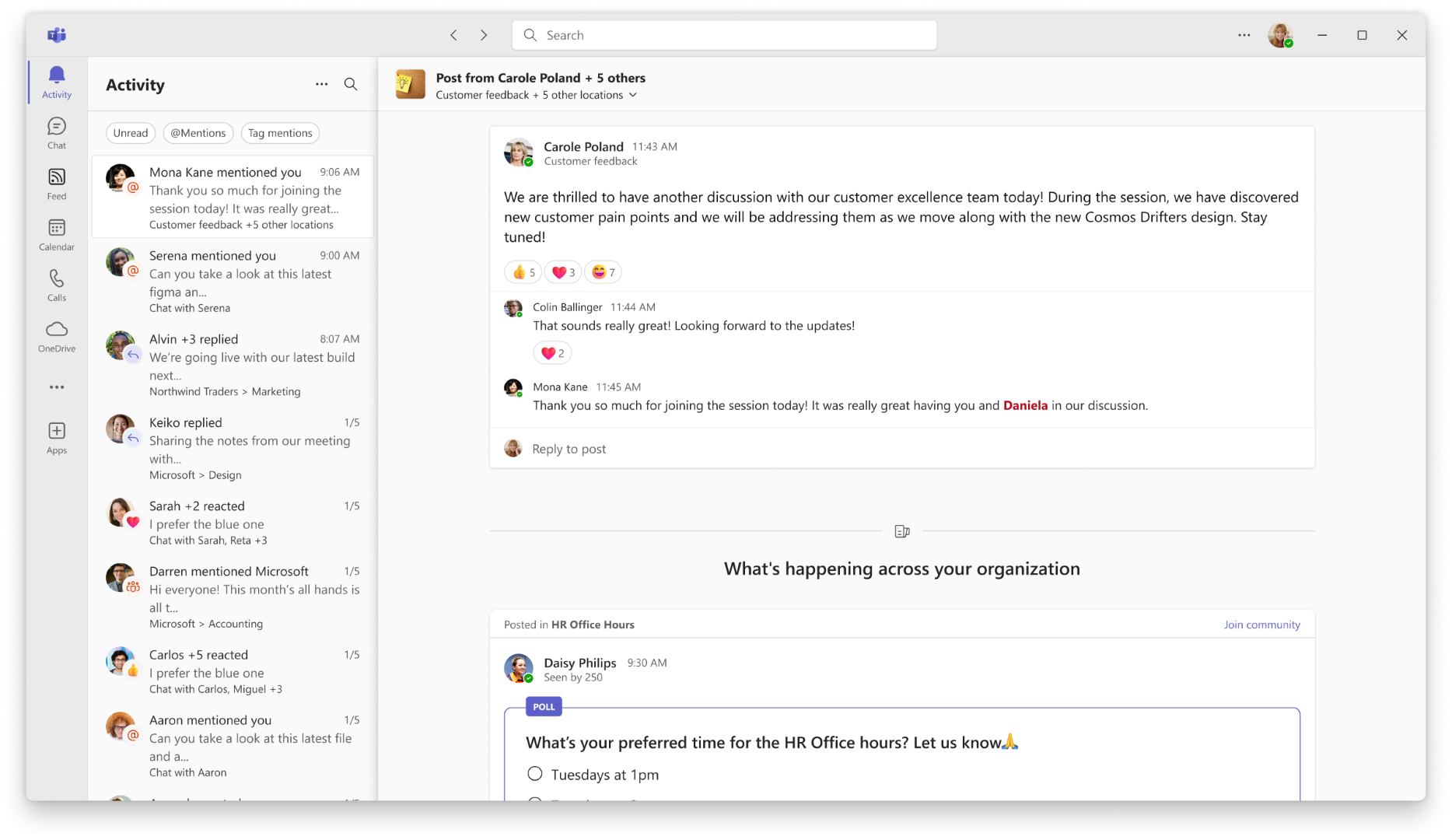
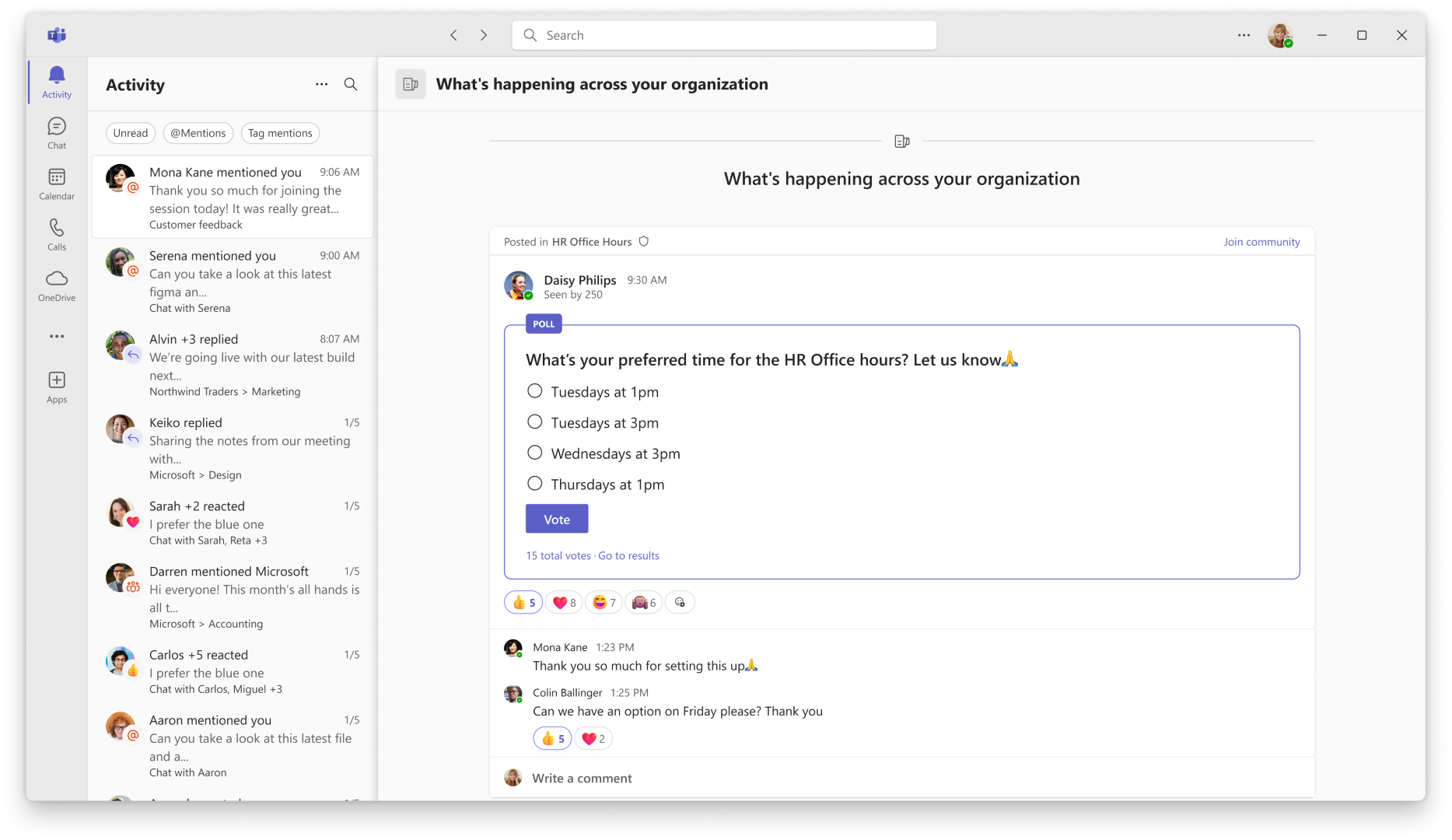
We are adding a new What's happening across your organization section beneath community and storyline notifications in the Microsoft Teams Activity feed. The section helps users discover relevant content beyond their immediate communities, including posts from leaders and official communities, and provides ways to join communities or follow colleagues directly from the notification experience.
[Rollout schedule]
- Public Preview (Worldwide): Rollout will begin in early November 2026 and is expected to complete by early December 2026.
- General Availability (Worldwide): Rollout will begin in early December 2026 and is expected to complete by mid-December 2026.
[Impact on your organization]
Who is affected
- All users licensed for Microsoft Teams and Viva Engage.
Platforms and services
- Microsoft Teams
- Teams Activity feed
- Communities and storylines
What will happen
- When users open the Teams Activity feed, they will see a new What's happening across your organization section beneath community and storyline notifications.
- Each notification can surface up to five relevant posts in a scrollable view.
- Users can discover relevant community and storyline posts beyond the communities they already belong to.
- Posts from leaders and official communities can appear in this section.
- Users can join communities, including official communities, from the notification experience.
- Users can follow colleagues and leaders from the notification experience.
Updated Teams activity feed experience
[Action required and recommendations]
If this is an experience that your network might benefit from, we recommend that you verify that Communities and Storylines are enabled in the Teams admin center.
To enable Communities in Teams:
- Go to the Teams admin center.
- Select Settings & policies.
- Choose Global (Org-wide default) or a custom policy.
- Open Messaging settings.
- Set Communities to On.
- Save your changes.
To enable Storylines in Teams:
- Go to the Teams admin center.
- Select Settings & policies.
- Choose Global (Org-wide default) or a custom policy.
- Open Messaging settings.
- Set Storylines to On.
- Save your changes.
[Learn more]
- Getting started with Viva Engage Communities in Microsoft Teams | Microsoft Support
- Manage Viva Engage experiences in Microsoft Teams - Microsoft Teams | Microsoft Learn
[Compliance considerations]
No compliance considerations identified. Review as appropriate for your organization.